Gemini setup guide
Before you start: Gemini custom apps currently require you to be 18 or over, in the United States, using English and a personal Google Account with Keep Activity on. Work and school accounts are not eligible. Confirm that Custom apps is visible in your Gemini account before starting.
The card-free Athlete trial starts on your first successful AI request after connecting your Garmin account. No card and no automatic charge. One trial per Garmin account. Access pauses when it ends unless you choose a plan.
1. Connect your Garmin account
Create your Garmin Community MCP account, connect Garmin and complete any Garmin verification prompt. Confirm the athlete and time zone in setup, then select Gemini.
2. Add Garmin in Gemini
- On Gemini web, open Settings → Connected Apps. If necessary, open Personal Intelligence first, then Connected Apps.
- Under Custom apps, choose Add a custom app and paste the server URL below. Select Next and follow the sign-in and permission prompts for Garmin Community MCP.
- In a chat, type @ and select your connected Garmin app, then ask for your first update.
https://mcp.garmincommunitymcp.com/mcp
Use the public server URL. Keep any private keys shown in your account private. Google custom-app requirements. Requirements checked 28 October 2026; provider interfaces and account access can change.
3. Get your first useful answer
Using my Garmin connection, confirm the athlete, then summarise my recent training and last night's sleep. Say which data is missing.
Check that Gemini calls a Garmin tool and returns your actual data. A generic answer or a connected status alone is not a successful data read. If tools are missing, enable Garmin for this conversation and recheck authentication.
4. Send an approved workout to your watch
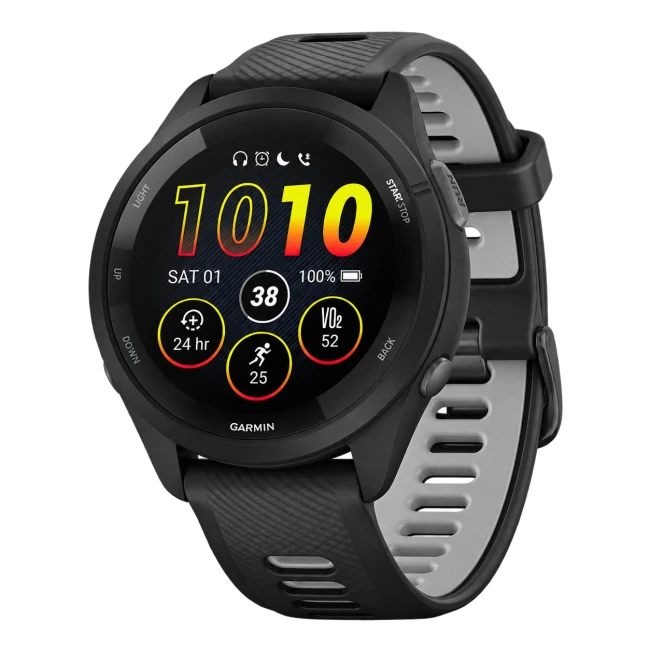
Sending workouts requires Athlete or Coach access (included in the trial), an AI client that supports write actions, and permission to change the selected Garmin profile. Review and approve each change. Workouts are saved and scheduled in Garmin Connect, then sync to a compatible watch at its next connection.
Draft a training week for my goal. Show me the sessions and dates for approval before creating or scheduling anything in Garmin.
Confirm the saved workout and calendar date in Garmin Connect, then sync your watch. A training-plan suggestion in chat alone does not send a workout or create an ongoing coaching schedule.
Connection and data handling
Garmin Community MCP is an independent service, not an official Garmin or AI-provider integration. Read the security details and privacy policy before connecting.
Questions
What do I need?
Gemini custom apps currently require you to be 18 or over, in the United States, using English and a personal Google Account with Keep Activity on. Work and school accounts are not eligible. Confirm that Custom apps is visible in your Gemini account before starting.
Can it send workouts to my watch?
Sending workouts requires Athlete or Coach access (included in the trial), an AI client that supports write actions, and permission to change the selected Garmin profile. Review and approve each change. Workouts are saved and scheduled in Garmin Connect, then sync to a compatible watch at its next connection.
When does the trial start?
The card-free Athlete trial starts on your first successful AI request after connecting your Garmin account. No card and no automatic charge. One trial per Garmin account. Access pauses when it ends unless you choose a plan.
Use your Garmin data in Gemini
Check account eligibility above. No card and no automatic charge.